![Forney_FV_logo_signature_600.jpg]](https://knowledge.forneyonline.com/hs-fs/hubfs/Forney_FV_logo_signature_600.jpg?height=40&name=Forney_FV_logo_signature_600.jpg)
Notes:
-
The Reset to Lab Settings option applies the Administrator Sample Form settings configured for the lab.
-
If no Administrator Sample Form settings have been configured for the lab, the user’s current Sample Form settings will remain unchanged.
Legend:
Configuring Sample Form Settings in ForneyTools
- Log in to ForneyTools
- Navigate to Admin
- Select Sample Form Settings
- Use the dropdown in the top left to change from ForneyTools to ForneyField
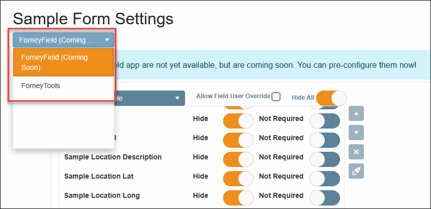
- Configure the desired Sample Form fields
- Select Save
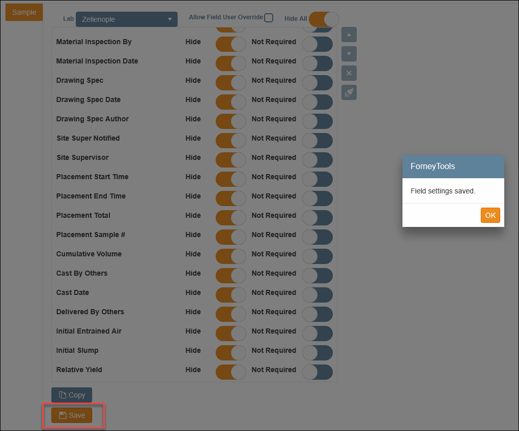
Note:
-
If desired, administrators can enable Allow Field User Override to allow users to select or deselect fields.
Setting Sample Form settings in ForneyField
- Log in in to the ForneyField app
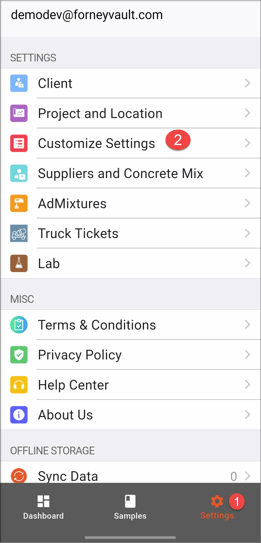
- Tap Settings
- Tap Customize Settings
- Tap Sample Form Fields
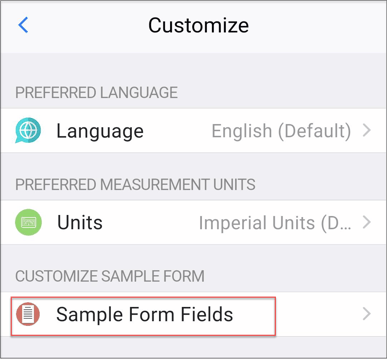
- Tap Reset to Lab Settings to have the Sample Form Settings match chosen fields by the lab Administrator.
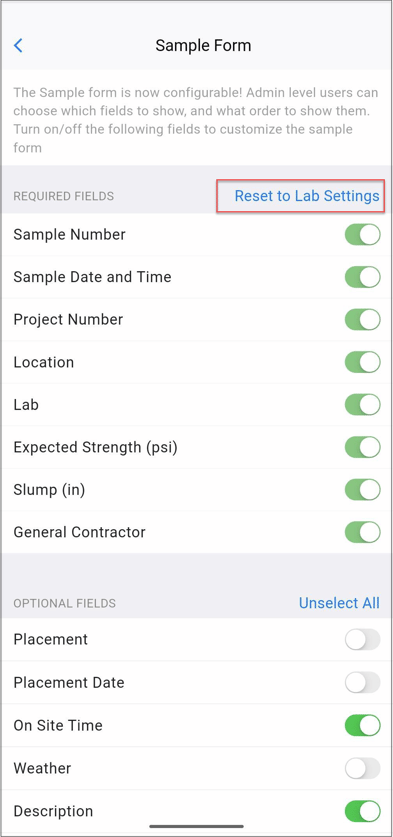
This sets the user’s Sample Form fields to match the Sample Form settings configured for their lab.
Need help?
Our support team is here to help you get started:
Phone: 724-346-7400
Toll-Free: 800-367-6397
Email: support@forneyvault.com