![Forney_FV_logo_signature_600.jpg]](https://knowledge.forneyonline.com/hs-fs/hubfs/Forney_FV_logo_signature_600.jpg?height=40&name=Forney_FV_logo_signature_600.jpg)
Sample Dashboard
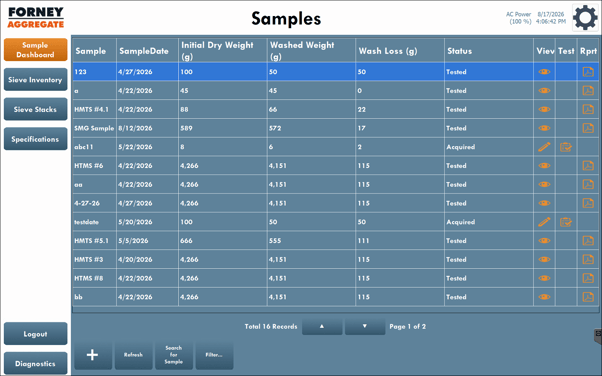
The Sample Dashboard is the starting point for aggregate testing. From the Sample Dashboard, you can create a new sample, locate existing samples, and open a sample to begin or continue testing.
Use the available search and filtering options to locate the sample you want to work with, or select New Sample to create a new aggregate sample directly from the tablet.
1. Create a New Sample
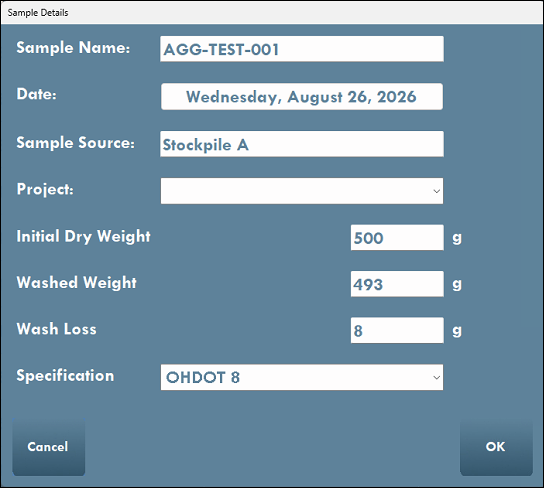
From the Sample Dashboard, select New Sample.
Enter the sample information, including the Sample Name, Date, Sample Source, Project, Initial Dry Weight, Washed Weight, Wash Loss, and Specification, as applicable.
Select OK to create the sample.
2. Start the Test
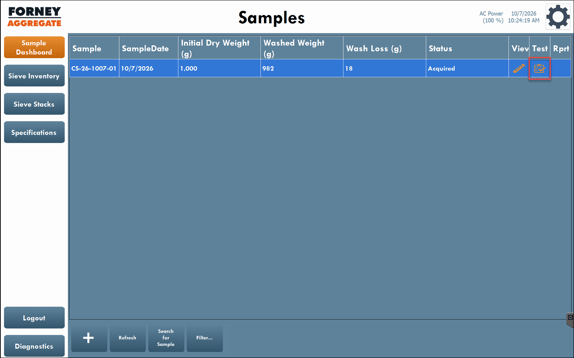
Locate the sample on the Sample Dashboard. Newly created samples will display a status of Acquired.
Select the Test icon for the sample to begin the sieve analysis.
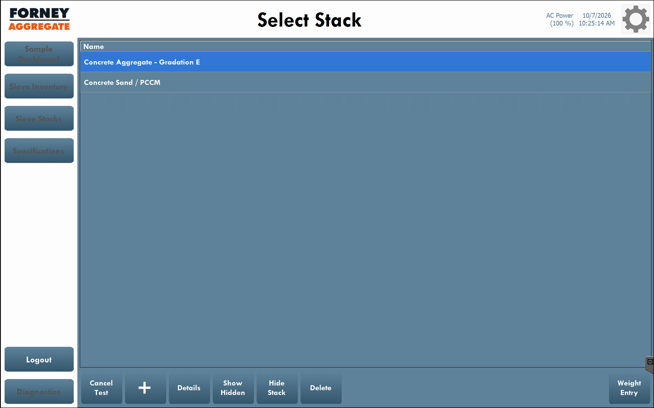
3. Select the Sieve Stack
Select the Sieve Stack being used for the test.
The selected stack determines the sieves that will be displayed for weight entry.
4. Enter the Sieve Weights
Enter the measured weight for each sieve in the selected stack, including the pan when applicable.
Forney Aggregate will use the entered weights to calculate the sieve analysis results.
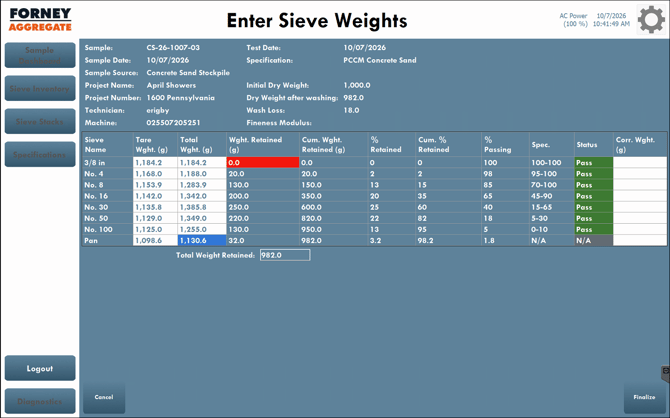
5. Review the Results
Review the calculated results after the sieve weights have been entered.
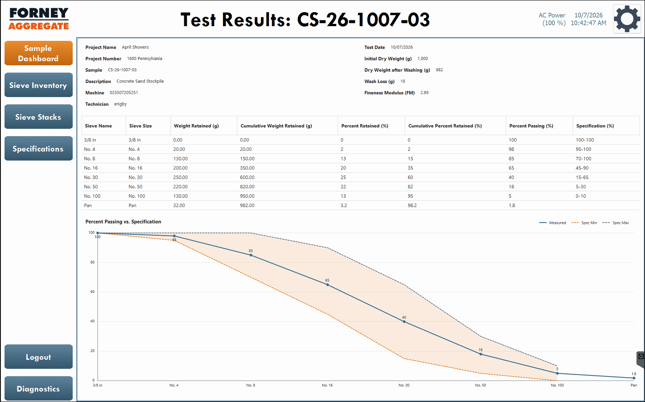
Forney Aggregate calculates the applicable results, including Weight Retained, Cumulative Weight Retained, Percent Retained, Cumulative Percent Retained, Percent Passing, Wash Loss, and Fineness Modulus, when applicable.