![Forney_FV_logo_signature_600.jpg]](https://knowledge.forneyonline.com/hs-fs/hubfs/Forney_FV_logo_signature_600.jpg?height=40&name=Forney_FV_logo_signature_600.jpg)
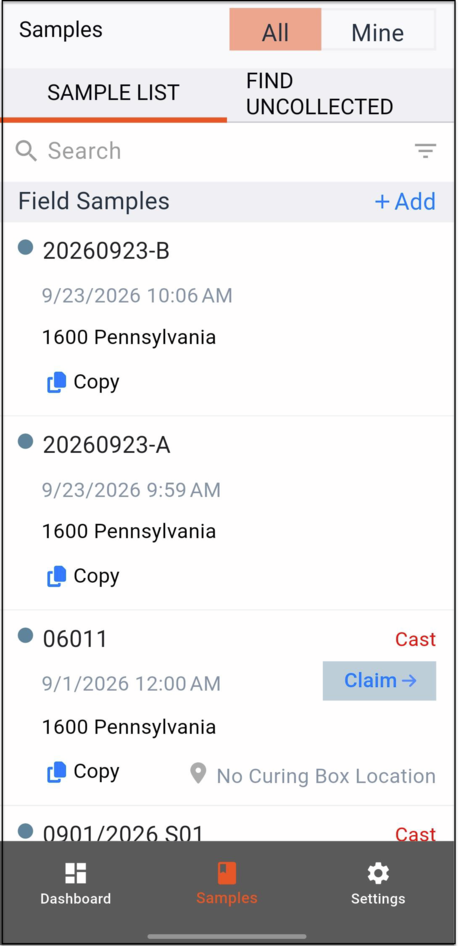
1. Select the Sample
Open Samples and select the sample you want to add photos to.
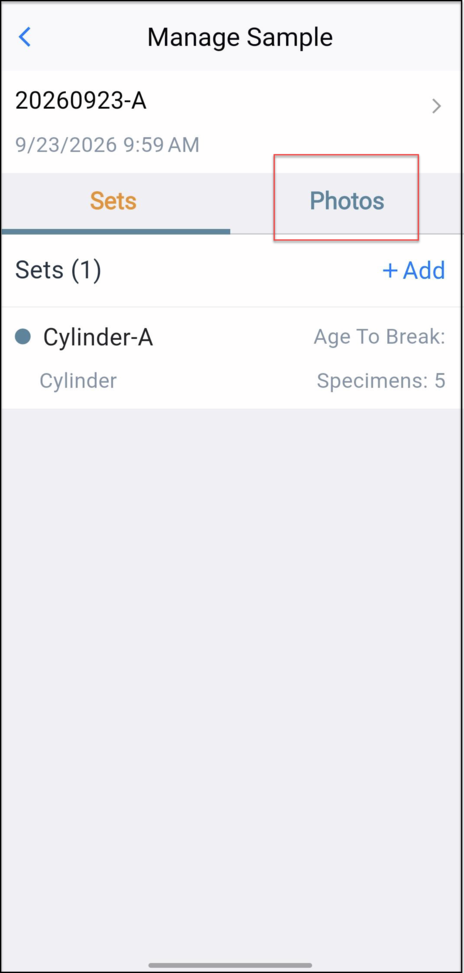
2. Open Photos
On the Manage Sample screen, select the Photos tab, then tap +Upload.
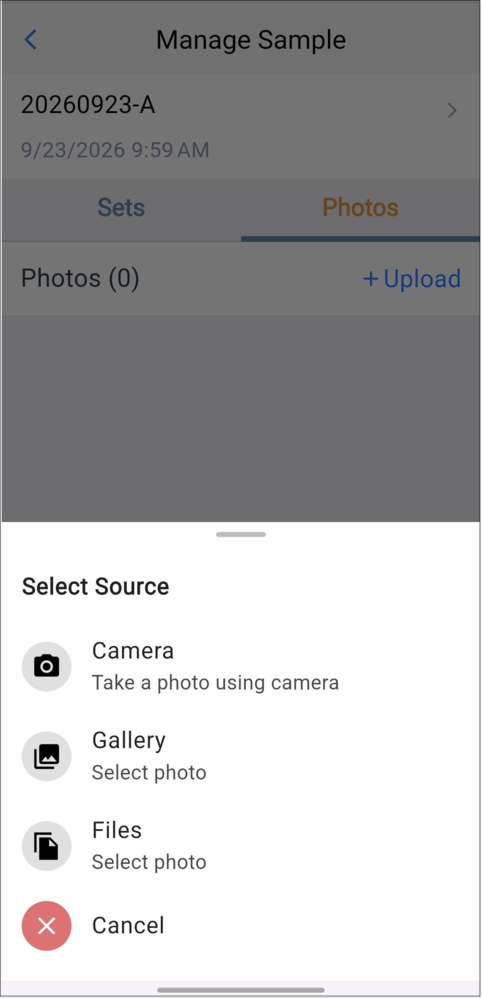
3. Select Your Photo Source
Choose how you want to add the photo:
- Camera: Take a new photo.
- Gallery: Choose a photo from your device’s photo library.
- Files: Choose an image from your device’s files.
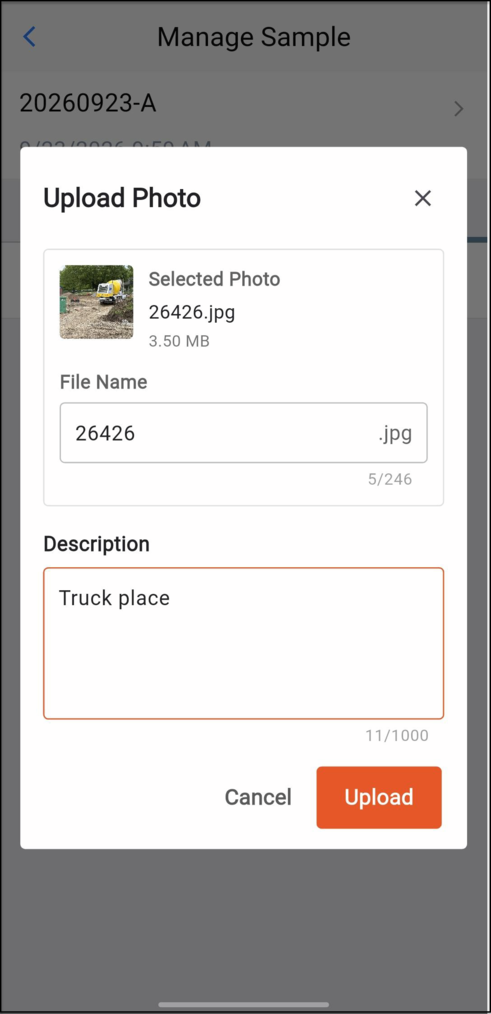
4. Review the Photo Details
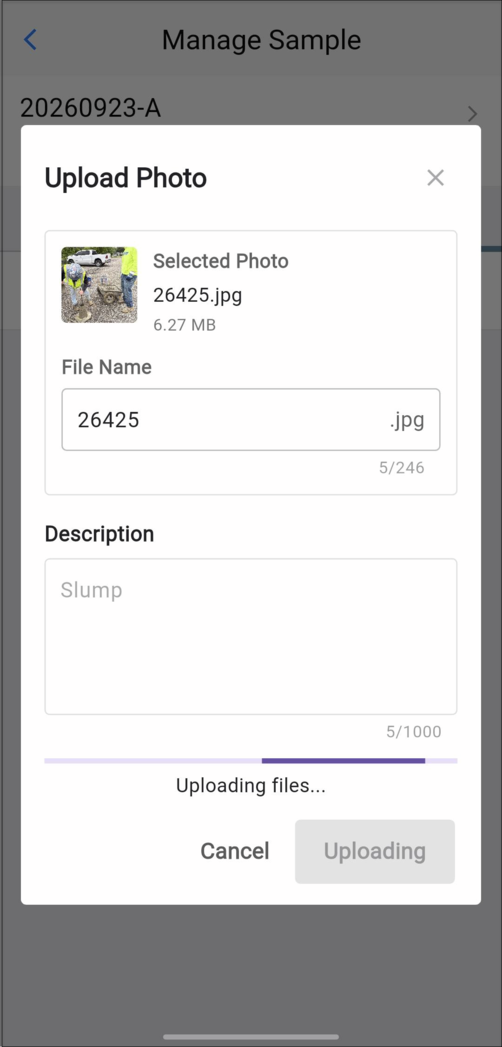
On the Upload Photo screen, review the selected photo and File Name.
Enter a Description to identify what the photo shows, such as “Slump,” “Air content,” or “Casting.”
5. Upload and Confirm
Upload the photo from the Upload Photo screen. Wait while Uploading files is displayed.
When finished, the app displays Photo uploaded successfully. Confirm that the photo and its description appear in the sample’s Photos list.
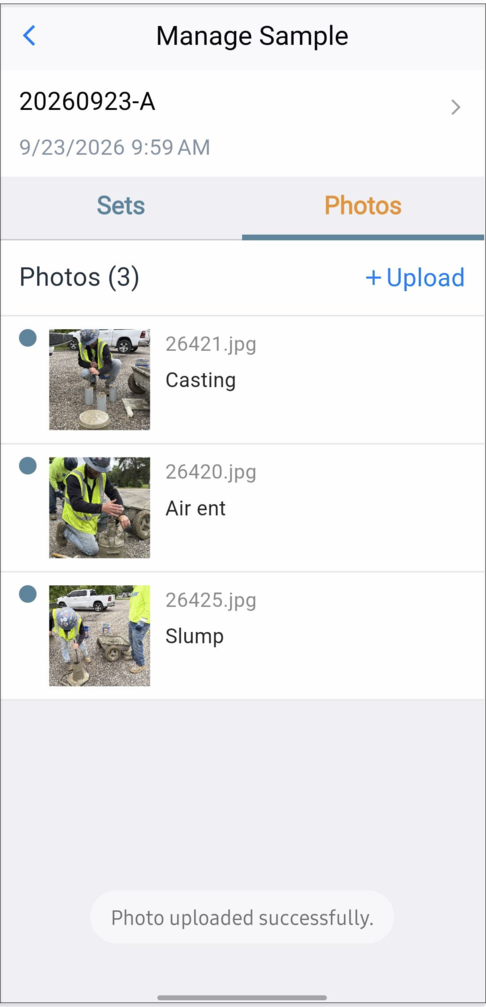
To add another photo, tap +Upload and repeat the process.