![Forney_FV_logo_signature_600.jpg]](https://knowledge.forneyonline.com/hs-fs/hubfs/Forney_FV_logo_signature_600.jpg?height=40&name=Forney_FV_logo_signature_600.jpg)
When to Perform This Maintenance
- As part of routine preventative maintenance
- Poor print quality (faded or inconsistent printing)
- Labels skipping or not aligning correctly
- After every label roll change (recommended best practice)
- Visible debris, dust, or adhesive buildup inside the printer
- Media sensor errors begin to occur
Required Materials
- Lint-free cloth
- Isopropyl alcohol
- Cotton swabs
- Zebra-approved cleaning pen (optional)
⚠️ Safety Notes
- Power OFF the printer and unplug it before cleaning
- Allow the print head to cool before contact
- Do not use compressed air (can push debris further into components)
- Do not use sharp or abrasive tools
1. Clean the Print Head
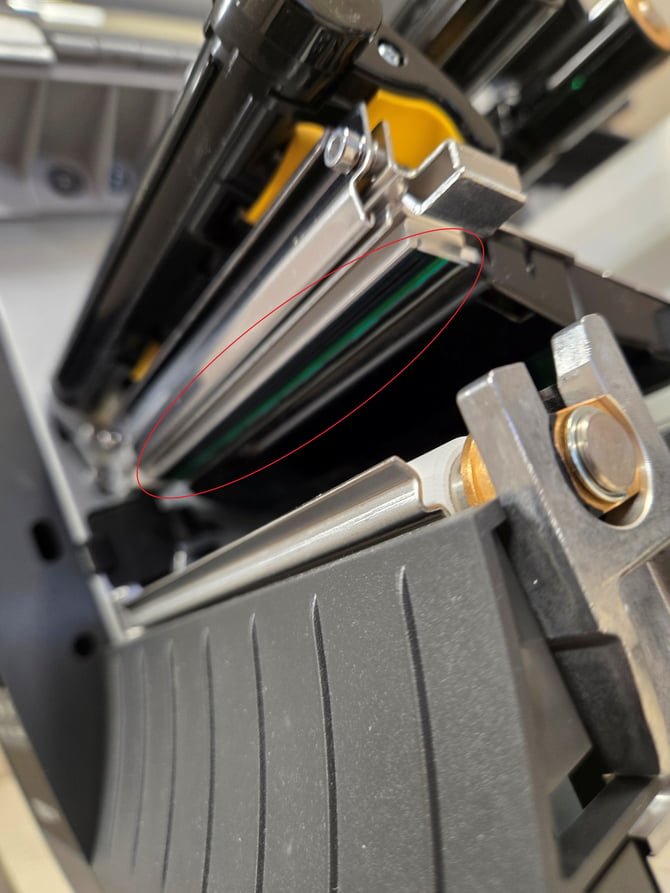
- Open the printer cover
- Open the print head lever
- Locate the print head assembly
- Lightly dampen a lint-free cloth or cleaning pen with isopropyl alcohol
- Wipe across the print line in a single direction
- Allow the print head to fully dry (30–60 seconds)
Important:
Avoid applying excessive pressure or touching the print line with bare hands.
2. Clean the Roller
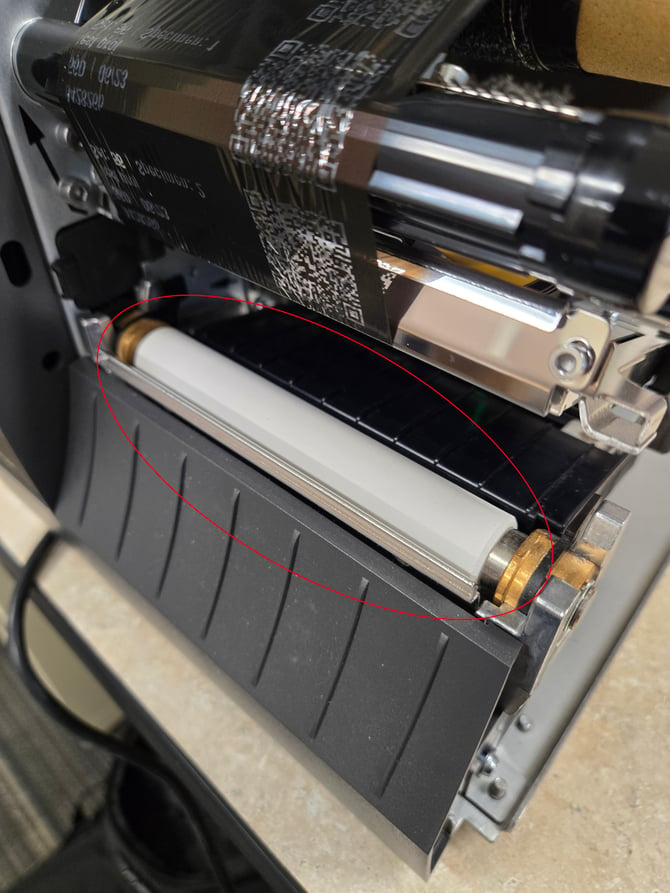
- Rotate the roller manually
- Wipe the roller using a lint-free cloth dampened with alcohol
- Clean the entire surface while rotating
Focus Areas:
- Adhesive buildup from labels
- Dust and debris causing slippage
Important:
Ensure the roller is completely dry before reinstalling media.
3. Clean the Media (Photo) Sensor
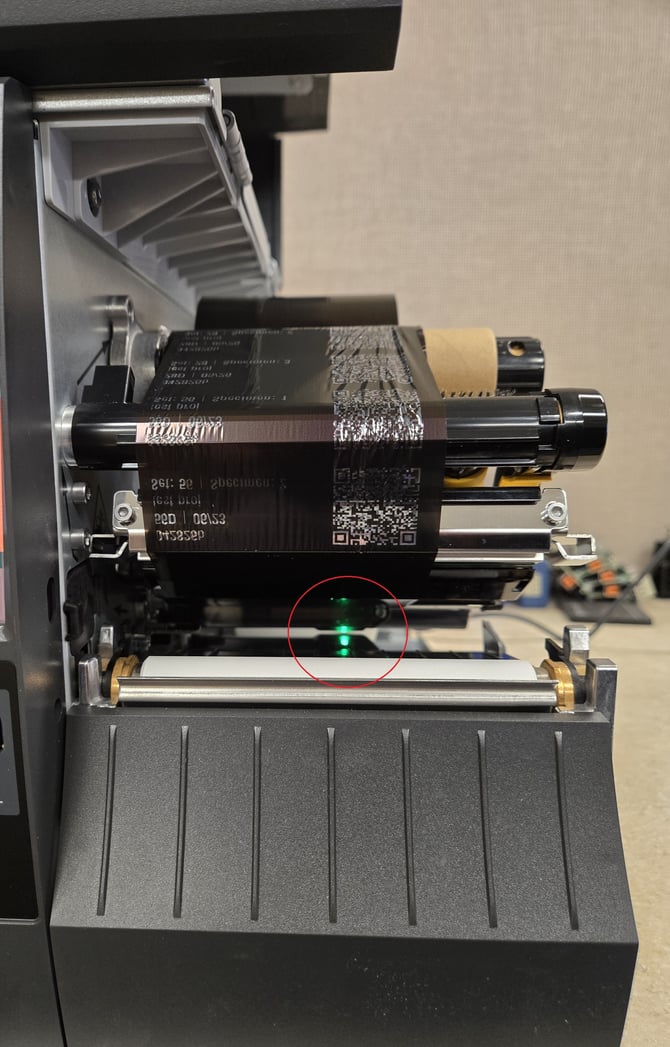
- Locate the media sensor along the label path
- Use a cotton swab (dry or lightly dampened with alcohol)
- Gently clean both sides of the sensor
- Remove any dust, label fragments, or residue
- Close the print head lever
Common Issues Caused by Dirty Sensor:
- Label skipping
- Misalignment or calibration errors
- Failure to detect label gaps
Post-Cleaning Steps
- Close the printer cover
- Restore power
- Perform a test print to confirm proper operation
Recommended Maintenance Frequency
- High usage environments: Monthly or per roll change
- Moderate usage: Every 2 months
- Low usage: Twice annually
Need Additional Support?
If the issue continues after performing the steps above, please contact Forney Product Support at 724-346-7400 or visit https://forneyonline.com/customer-service/. with the following:
- Printer serial number
- Description of the issue
- Photos or video of the problem (if available)