![Forney_FV_logo_signature_600.jpg]](https://knowledge.forneyonline.com/hs-fs/hubfs/Forney_FV_logo_signature_600.jpg?height=40&name=Forney_FV_logo_signature_600.jpg)
Use this procedure when: the specimen is not already available in the machine's specimen list and you want to create it without completing the full Detailed entry workflow.
Before you begin
- Confirm that the correct Project and Location are available on the machine. If either is wrong, you can select or create it in Detailed entry and then return to Quick test.
- Quick test uses the currently selected Sample by default. You can choose another existing Sample or create a new Sample without leaving Quick test.
- Specimen types and test types come from the types already configured in ForneyVault. They are not defined on this screen.
- Dimensions entered here are nominal. Enter actual measured dimensions later on Run Test or Specimen Measurements.
Touchscreen tip: Tap a white selection button to open a finger-friendly choice screen. A right-pointing chevron (>) indicates that the choice can be changed.
Create one or more specimens
1. Open Add Specimen
From the specimen list, tap Add New Specimen. The Add Specimen screen opens on Quick test.
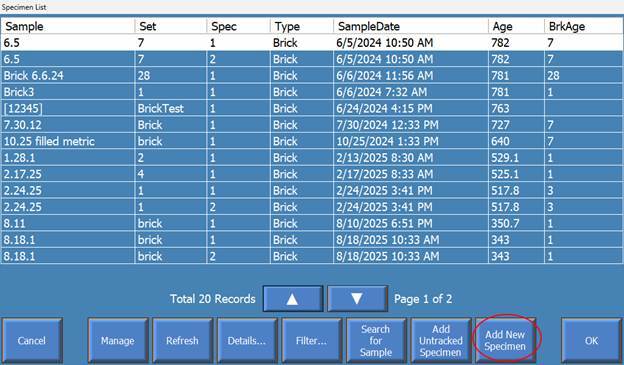
Open Add New Specimen from the specimen list
2. Confirm the Sample context
Read the Testing under area. The first line shows the Project and Location. The second line shows the complete Sample number that will own the new records. Leave the current Sample selected, tap Choose sample to use another existing Sample, or tap New sample to create a new production lot or sample date.
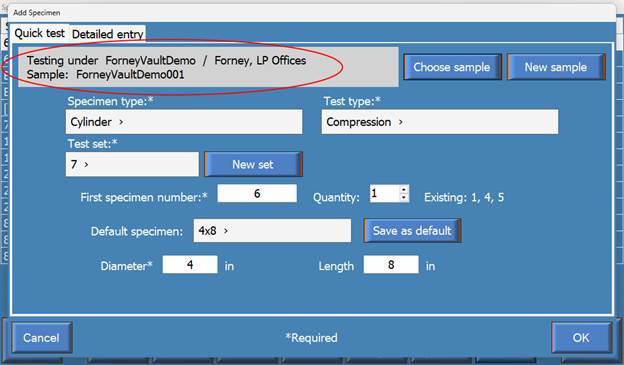
Quick test displays Project and Location on the first line and the complete Sample number on the second.
If the Project or Location is wrong: Tap Detailed entry. Select or create the Project, then select or create the Location. A Sample and Test set are not required for this handoff. Tap Use in Quick test to return with the selected Project and Location.
To review or correct existing information: Detailed entry can also select an existing Sample and Test set. Tap Edit beside the Sample to change its number, description, date, or actual local time. Tap Edit beside the Test set to correct its information or optional test age. ForneyLink prevents editing when the selected Sample or Test set contains tested specimens.
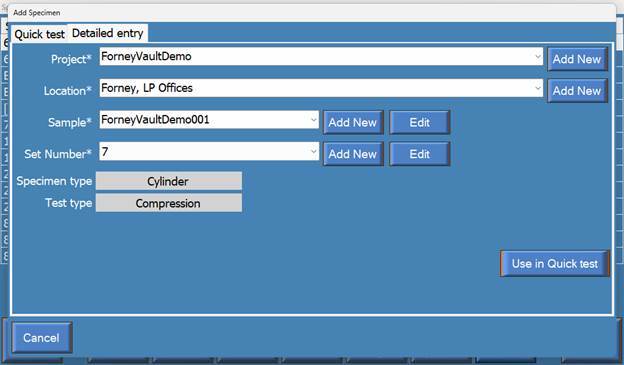
Detailed entry supports a Project and Location-only handoff and optional Sample or Test set editing.
3. Create a new Sample when needed
Tap New sample, choose the Sample date, and confirm the suggested Sample number. Tap the number to edit it with the onscreen keyboard. You can cancel either dialog and return to Quick test without creating a Sample.
ForneyLink suggests yyyyMMdd-A, such as 20260724-A. If another Sample for that date already exists at the Location, the letter advances to B, C, and so on. When more than one machine is assigned to the same lab, the machine's five-digit serial number is included to prevent collisions, such as 20260724-22260-A.
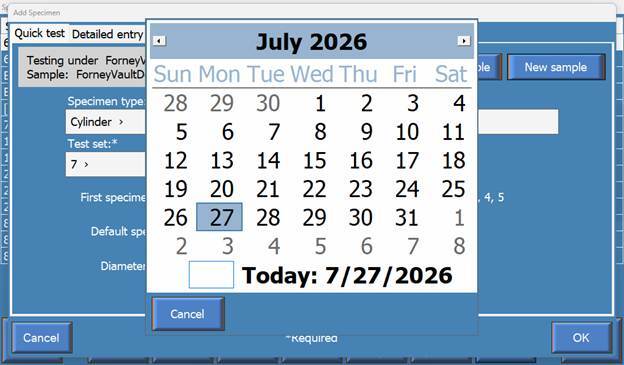
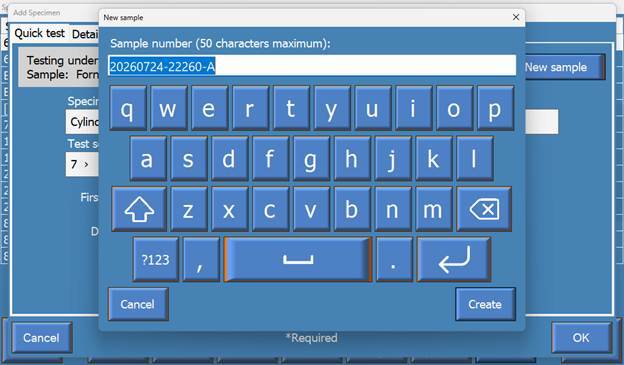
Choose the Sample date and confirm the Sample number
4. Choose the specimen and test types
Tap Specimen type and choose the correct configured type. Then tap Test type and choose a compatible test. The available tests update for the selected specimen type.
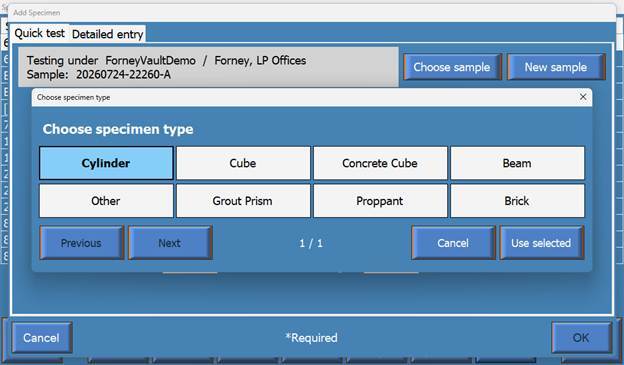
Choose a configured specimen type
5. Choose or create the Test set
Tap Test set to choose an existing compatible set. To create one, tap New set, review or edit the suggested set number, and optionally select a test age in whole days.
The suggested set number is based on the selected Default specimen and specimen type, followed by -A. The suffix advances when a duplicate exists. Choose Not specified when test age does not apply; the test age is then left blank in ForneyVault.
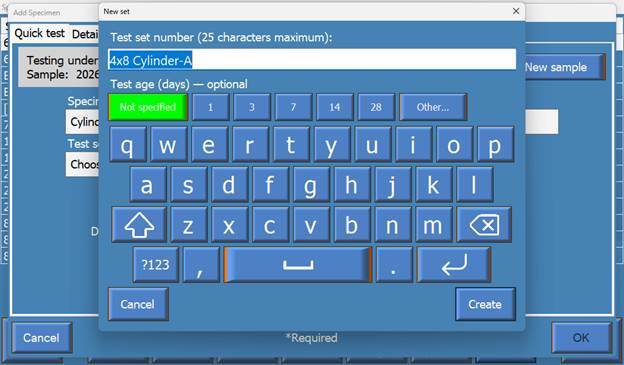
Create a Test set and optionally assign test age
6. Select or enter the nominal dimensions
Choose a Default specimen to load saved nominal dimensions. If no suitable default exists, enter the nominal dimensions shown for the selected specimen type. Tap Save as default if you want to reuse them.
Cylinder convention: Cylinder defaults are named and displayed Diameter x Length, such as 4x8 and 6x12.
The fields change with the specimen type. For example, a cylinder uses Diameter and Length, while a beam uses Span Length, Width, and Depth. Values are displayed in the operator's selected units.
7. Enter the specimen numbers
Enter the First specimen number and Quantity. ForneyLink creates consecutive specimen numbers beginning with the number entered. Check Existing to avoid numbers already used in the selected set.
Example: If First specimen number is 101 and Quantity is 3, ForneyLink creates 101, 102, and 103.
8. Create and select the specimens
Review the required fields, then tap OK. ForneyLink creates the specimens and returns to the specimen list with the first new specimen selected.
If the list is temporarily reduced to the first created specimen, the Search button turns green to show that the list has been filtered.
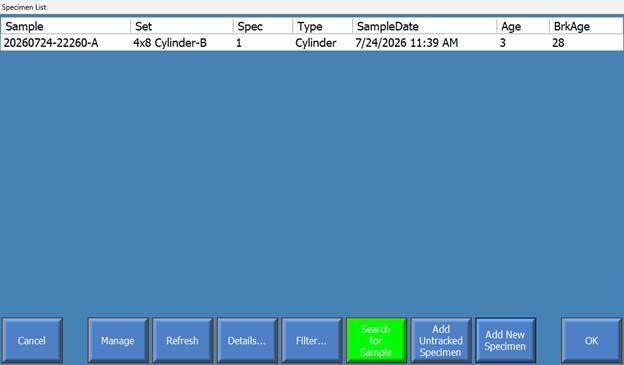
Confirm the first new specimen is selected
Quick test field reference
Testing under: The Project and Location appear on the first line; the complete selected Sample number appears on the second line.
Specimen type: The existing specimen type used by ForneyVault and the machine.
Test type: The existing test type that will be assigned to the Test set.
Test set: An existing compatible set, or a new set created from Quick test.
First specimen number: The number assigned to the first specimen created.
Quantity: The number of consecutive specimens to create.
Existing: Specimen numbers already in the selected Test set.
Default specimen: Saved nominal dimensions for the selected specimen type.
What happens next?
- The specimen is available for selection and testing on the machine.
- Enter actual measured dimensions on Run Test or Specimen Measurements before testing when required.
- The specimen, Sample, and Test set remain associated with the selected Project and Location in ForneyVault.
Need help?
Our support team is here to help you get started:
Phone: 724-346-7400
Toll-Free: 800-367-6397
Email: support@forneyvault.com